

Image sliders are dynamic visual components used to showcase testimonials, featured speakers or banners. This guide will show you how to edit an existing slider — updating images, text, links, and layout.
Access the Slider Manager
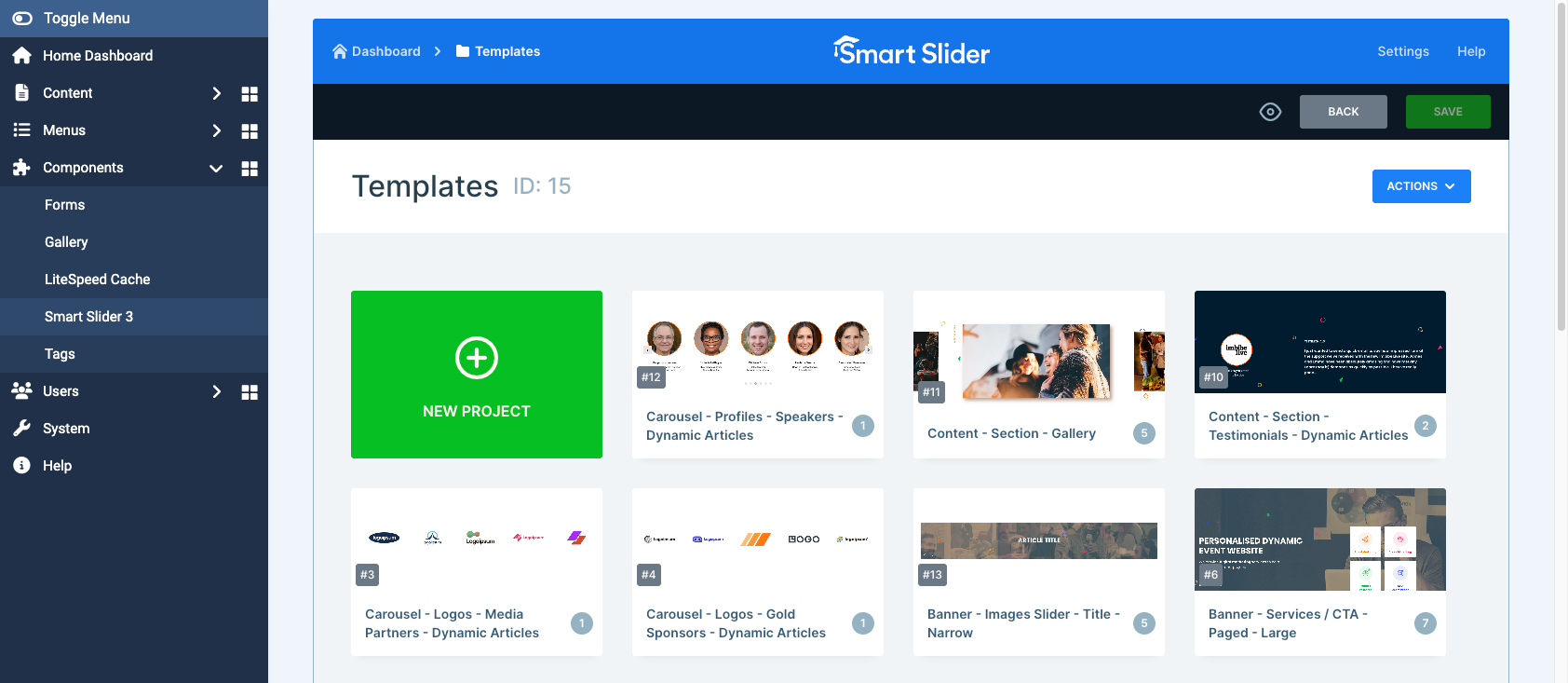 The slider manager can be accessed via Components > Smart Slider 3
- From the side menu panel, go to
Components > Smart Slider 3 - You'll see a list of all exisiting sliders. These sometimes are categorised by folders.
Edit a Slide
Once you have selected your slider, you will see the slide management screen where all individual slides are displayed. To edit a specific slide:
- Click on the slide you want to update.
- Within the slide editor, you can:
- Change the background image by clicking the image area and selecting a new file.
- Edit text by clicking on existing text boxes.
- Move or resize layers (text, buttons, images) using drag-and-drop.
- Add new elements like shapes, headings, or buttons using the “+” icon.
If you aren't seeing changes after saving
Clear the cache by clicking Components > Smart Slider 3 > Settings > Clear Cache and then returning to the Home Dashboard and click Purge LiteSpeed Cache at the top of the page, this will ensure your changes will be updated too.