

Forms are essential for collecting information from your site visitors — whether it's a simple contact form, a newsletter signup, or a register interest form. In LiveWeb, forms are managed via the Forms component, allowing you to build and customise forms without needing to code.
Create a New Form
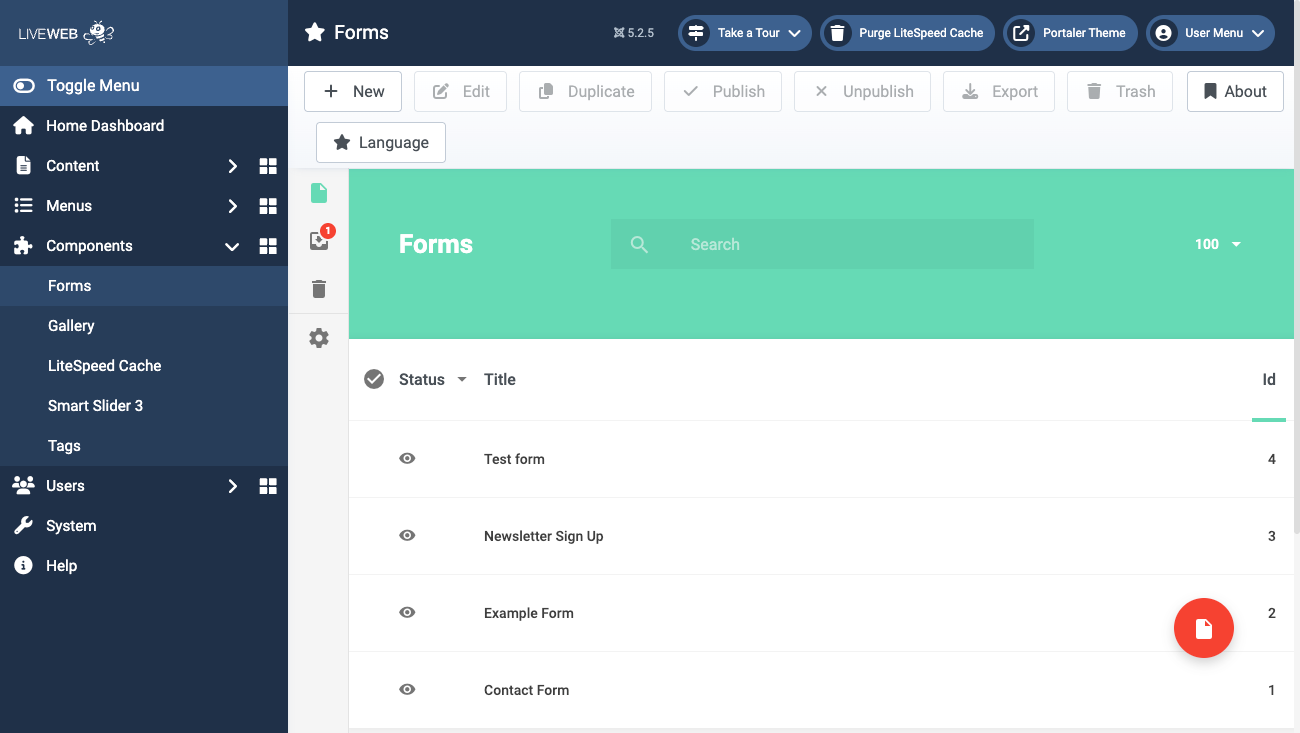 The forms component can be located via Components > Forms
- In the side panel, navigate to
Components > Forms - Click on New in the top-left corner.
- Enter a name for your form (e.g., 'Contact Form').
- Click Next to begin building your form.
Add Fields to Your Form
Your form can be populated by dragging and dropping options from the left sidebar to the main form window.
- The most commonly used field type is the 'Input' type. The 'Input' field will generate a text box that can be further customised, e.g. an email address field will need the input type of 'Email'.
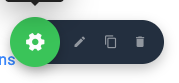
- Hovering over a field and clicking the green 'Gear' icon will display the field settings. Click the Pencil icon to edit the field.
- We also recommend to include an 'Acceptance' field to ensure users are aware of privacy policy terms. This can be linked to a privacy policy page on your website.
- Make sure to save your form regularly to avoid data loss.
Submit Button
A submit button is required to submit the form data. To add a submit button to the form:
- Locate the 'Submit Button' field and drag-and-drop the field onto the form.
- Click on the green gear icon to bring up the field settings.
- You can determine the email address you would like to receive form submissions by going to
Submit Button > Settings > Admin Email Notifications - Add the email to the Admin Email field.
- Multiple emails can be added individually.
Edit an Existing Form
To make changes to a current form:
- Go to
Components > Forms - Click on the name of the form you want to edit.
- Add, remove, or modify fields as needed.
- Don’t forget to Save your changes.