
In LiveControl it is possible to issue a refund on a registration, and for the payment provider to also be updated and credit issued back to the customers card. This requires a 2-way integration of the payment provider. 2-way integrations are currently supported with Stripe or Cybersource. Refunds in LiveControl will still be required to balance reporting statistics when other payment providers are used, but these will require you to also log in to the payment provider and actually make the refund.
Find the order
First, find the order you wish to process the refund on, you can do this using the customer record and selecting the orders tab, or by using the Orders list (top menu: Financial -> Orders). Both options are detailed below.
From the customer record, select the orders tab:
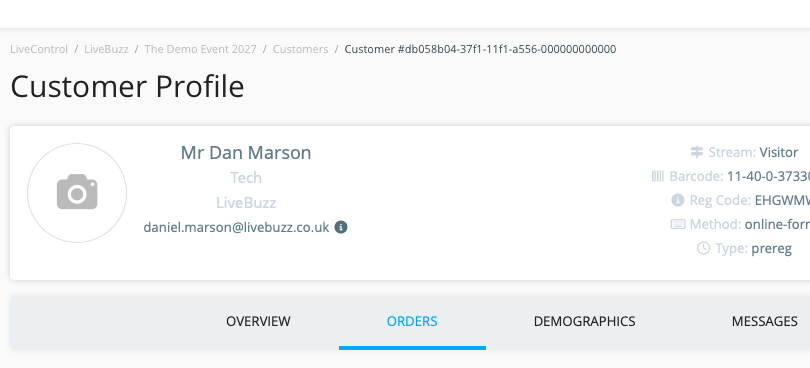
This will show a list of Orders, on the order you with to refund, click the magnifying glass on the far right side of the row:

From the top menu select Financial then Orders:
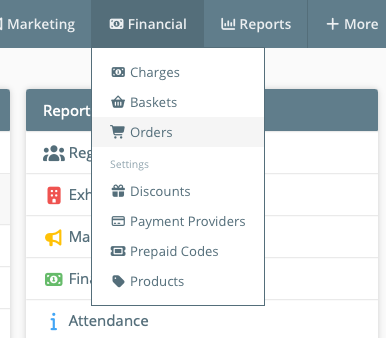
This will display a list of all orders (filters dependent) which you then click on View on the left side.
Start the refund
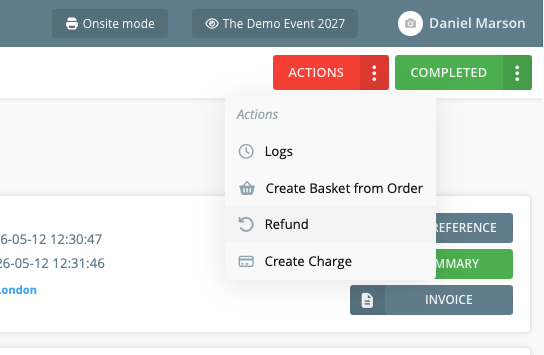
To start the refund, click on Actions in the top right corner, then click on Refund:
From the next screen, we will begin to build out our refund, we will select the products on the order we want to refund, how much to refund and apply the reason for doing so.
Click on Add Item to add the first product you wish to refund. You can only refund products that were actually on the order.
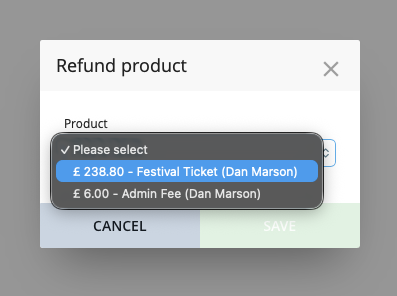
Choose the item from the list:
Specify the amount to refund (net value) and the reason for the refund:
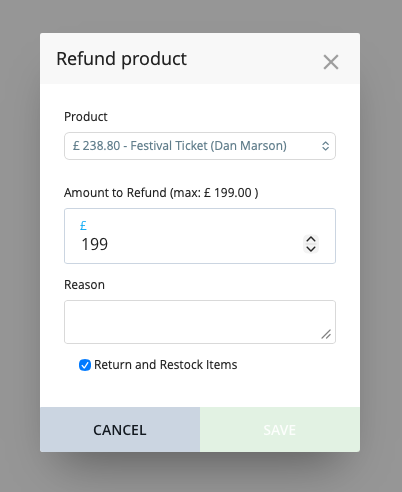
You will also see the return and restock items checkbox, ticked by default. Leaving this box ticked will ensure the product is unassigned from the customer and if applicable, the item will become available again for someone else.
Click on Save to add this product to your refund.
Repeat this process to add further products from the order to your refund.
Once you are happy with the refund products you can review the amounts being refunded:
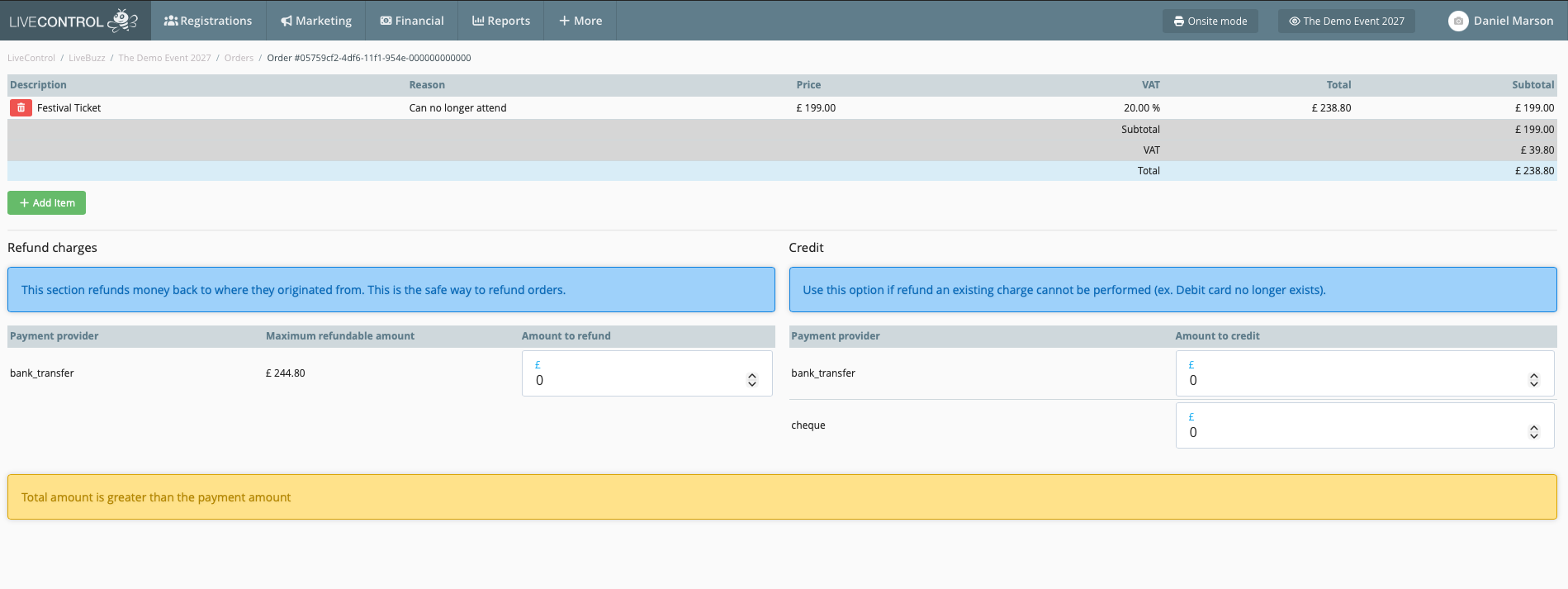
The total amount to refund is shown in the table at the top and where the money is being refunded to at the bottom in two sections.
Refund charges
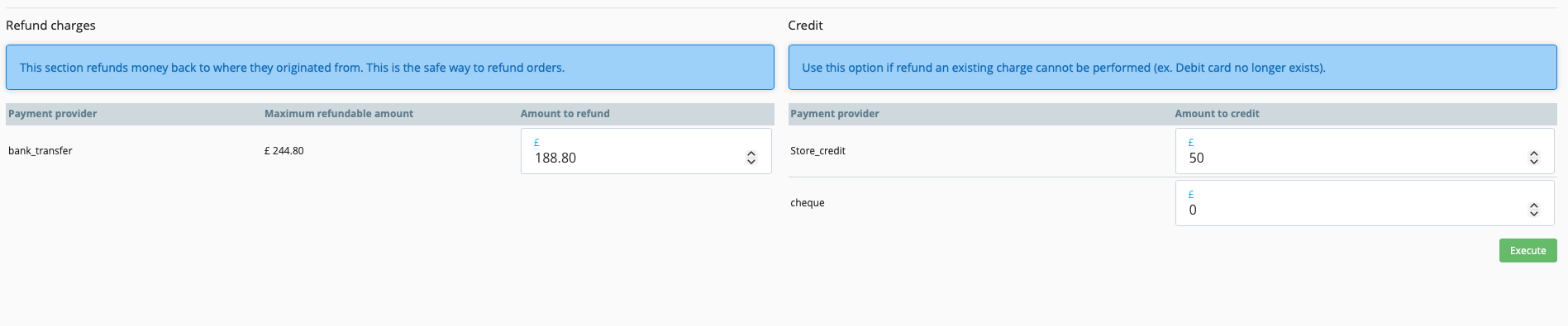
This section, on the left side refunds money back to where it originated from, in the example above we can see bank_transfer, but you would also see credit_card / stripe / cybersource or similar here as well. In the scenario above, if I wish to refund the entire £238.80 back to the customer, then I would enter that amount in the Amount to refund box. Once the refund balances you will see the Execute button appear:

Credit
You can also refund monies from an order to store_credit or to another payment provider. Store Credit is useful if you wish to hold part of the refund back to process another order with it, for example to process a new order for a cancellation fee. In the scenario above I have £238.80 available to refund.
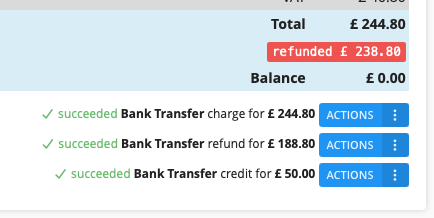
I could refund £188.80 back to the customer and £50 to store_credit to use for a cancellation fee, once the refund balances, you will see the Execute button appear:
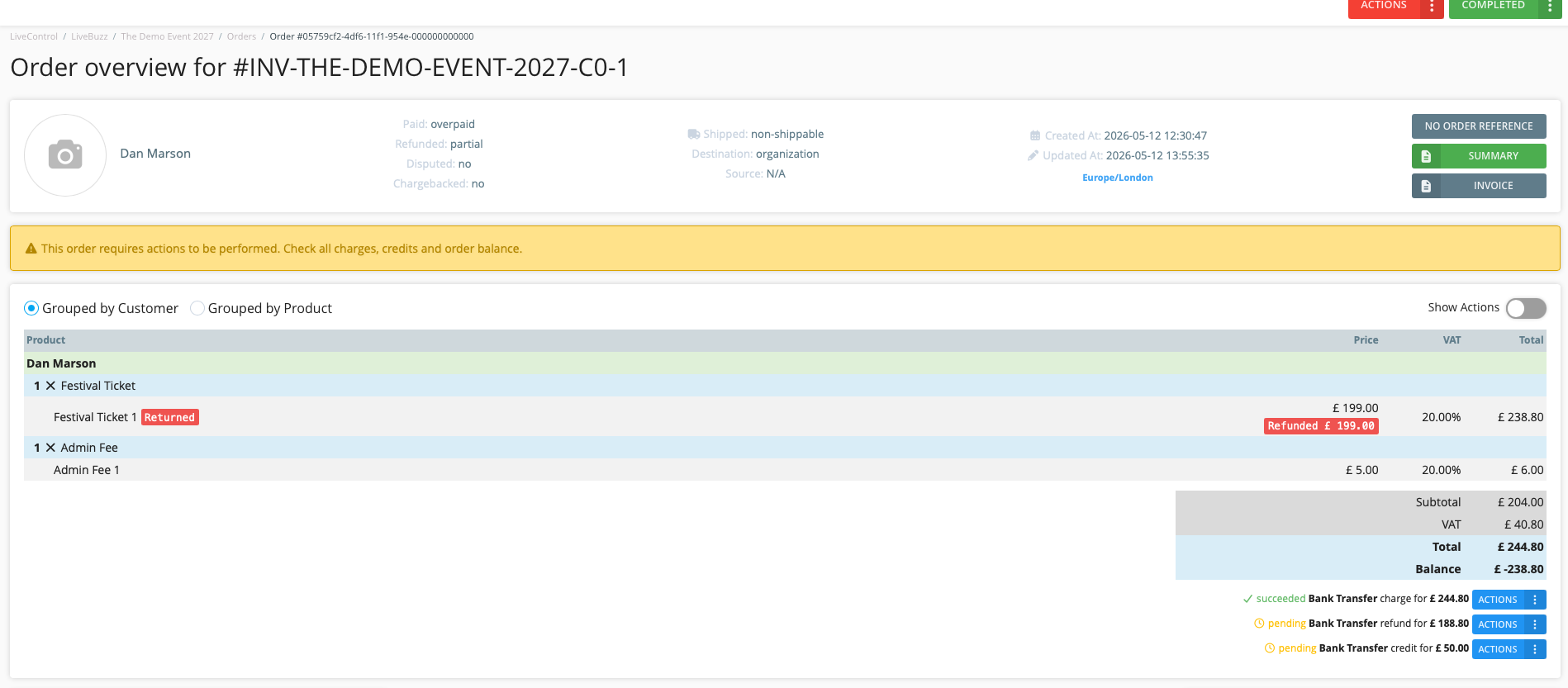
Once executed, you will be returned to the order overview, with the refund ready and the items returned:
Moving the money
There is one last step on the refund, and that is to process the pending charges and actually move the money.
In the example above we are refunding £188.80 back to the customer and holding £50 in store_credit so we have two pending charges which need to be captured / executed so that the money actually moves.
If you are using the two-way card payment integrations mentioned earlier, when you capture / execute this charge, this is the point when the money actually moves from your account back to their card.
For bank transfers, you will obviously need to process this bank transfer manually at your bank, then capture the details here so the refund balances.
For store_credit, you can execute it here and the funds become available on the customer record.
In all of the examples above, click on Actions and then Execute to complete this step.
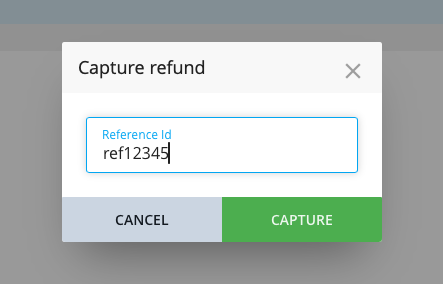
In most cases, LiveControl will prompt you for a reference id where you can store any transaction reference or ids applicable.
Once all of the above has been completed, you can check the refund balances in the overview: