

The Media Manager is the tool for viewing and uploading images / pdf files etc. It’s useful for bulk uploading files and managing the media content in your website.
Acessing the Media Manager
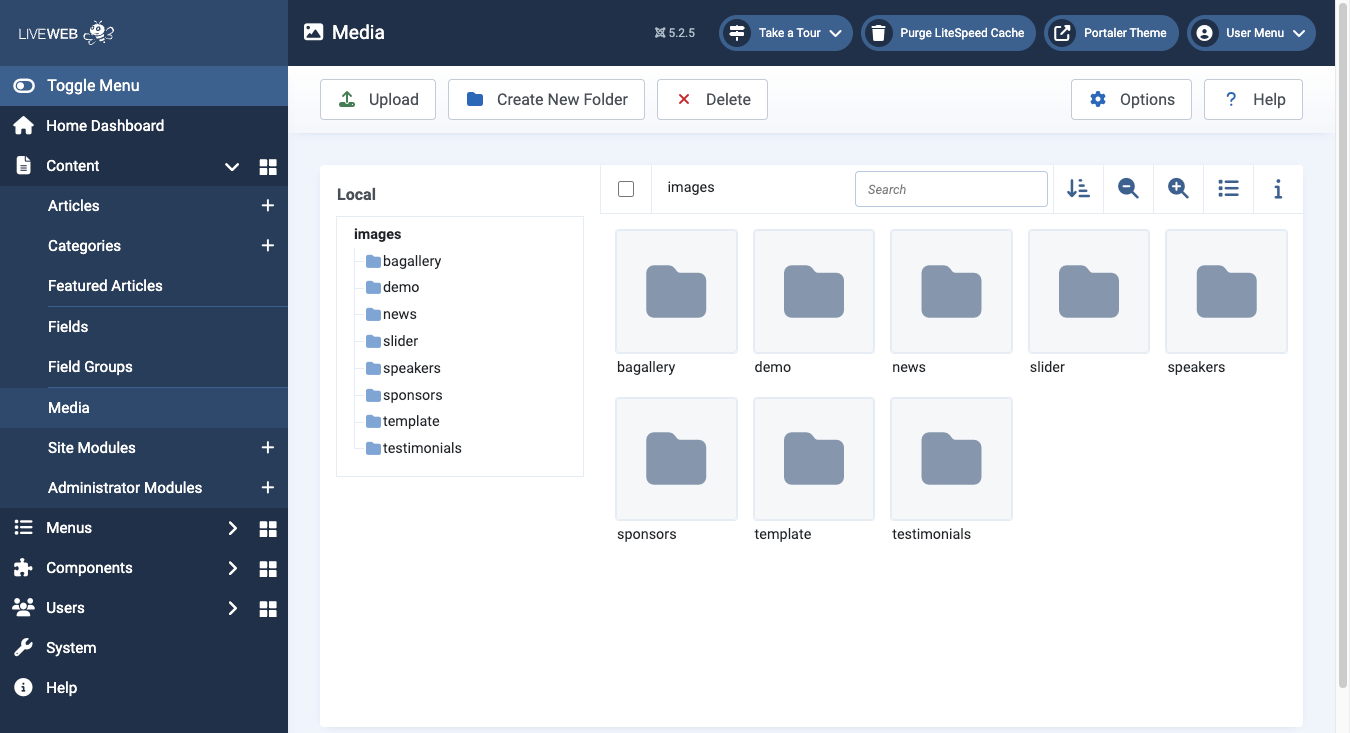 The Media Manager can be accessed via Content > Media
- Log in to your LiveWeb admin panel.
- Navigate to
Content > Media. - You’ll see the media folders and all uploaded files in your library.
Uploading Files
To add new media:
- Click the Upload button in the toolbar.
- Choose files from your computer (images, PDFs, etc.)
Alternatively you can drop and drop files from your computer to the Media Manager screen.
Organising Your Media
Use folders to group related files (e.g. Sponsors, News).
To create a new folder:
- Click the Create New Folder button.
- Give it a name and it will appear in the Media Manager window.
Best Practices
- File images in folders for better organisation.
- Use web-optimised image formats like .jpg, .png and .webp
- Keep file sizes small (below 1 mb) to ensure fast loading times.
- Use Alt Text for accessbility and SEO benefits.
- Avoid using special characters and spaces in file names where possible.
- Once an image or file is used on the website, avoid changing its folder name / location / name, as this can prevent it from being viewable on exisiting pages.