

We recommend using Google services for tracking visitor behaviour on your website. This can also be used to track traffic between your website and LiveBuzz Registration page.
Login to Google Analytics
- Go to google.com/analytics
- To create an account, click Start for free
- To sign in to your account, Click Sign in to Analytics
Add New Property
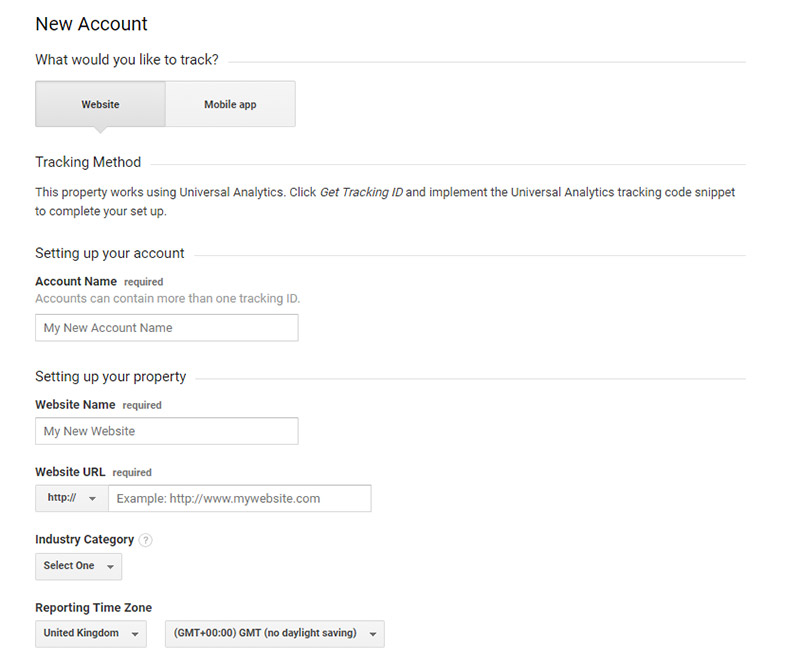 New Google Analytics Account
Once signed in to Google Analytics:
- Click Admin
- In the Account column, use the menu to select the account to which you want to add the property
- In the Property column, click Create Property
- Select Web
- Enter a name for the property
- Enter the Website URL - This should be the domain name, with no characters following the name (e.g., www.example.com, not www.example.com/)
- Select the Industry Category
- Select the Reporting Time Zone - Analytics uses this as the day boundary for your reports regardless of where the data originates)
- Click Create
- Make a note of the Tracking ID (e.g. UA-156529113-1)
Create Google Tag Manager Account
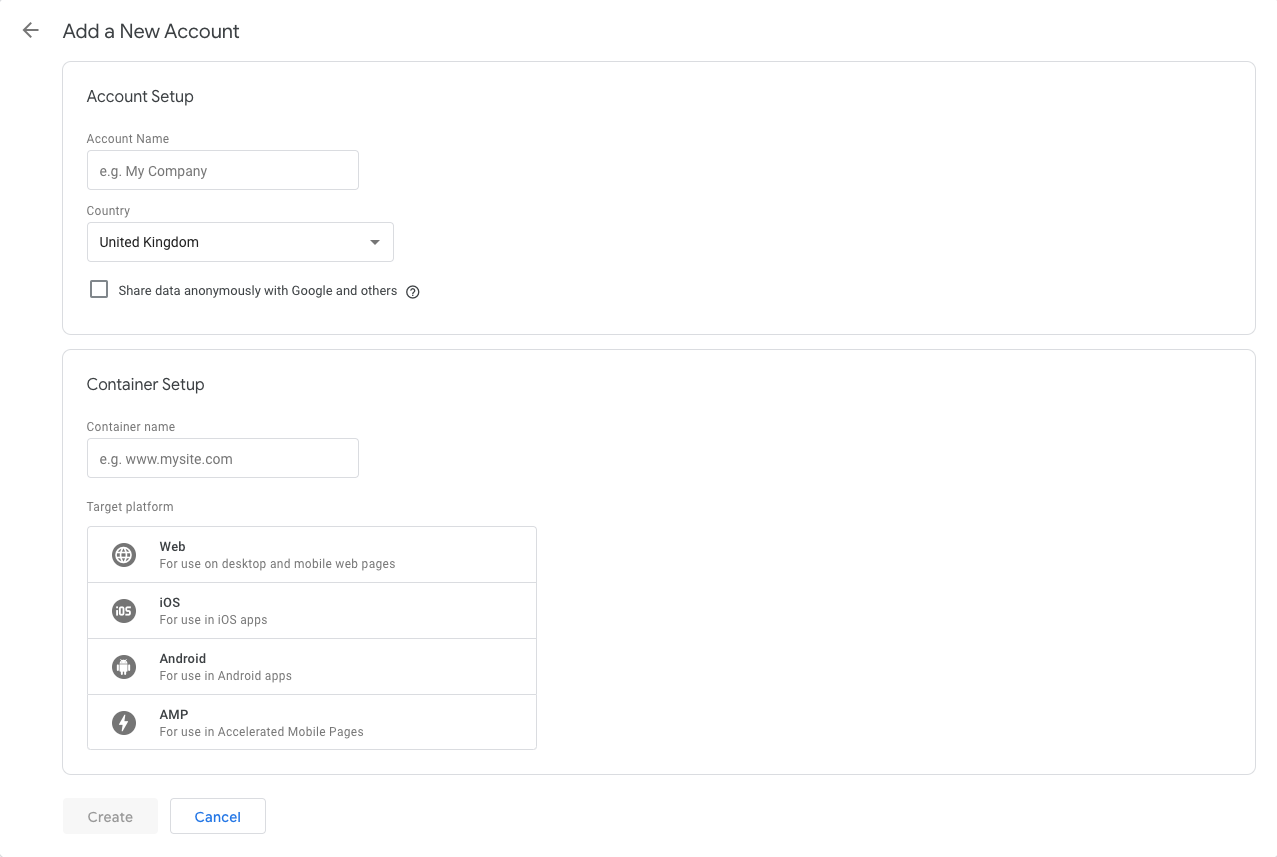 Tag Manager New Account
- Create an account, or use an existing account, at tagmanager.google.com
- In Tag Manager, click Accounts and then Create account
- Enter an account name
- Click Continue
- Enter a descriptive container name and select the type of content Web
- Click Create - The tracking code will be generated
- Provide LiveBuzz with both tracking codes
Link Analytics with Google Tag Manager
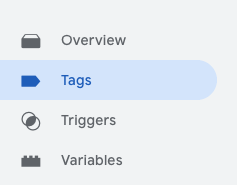
- On the Workspace Overview screen, click New Tag. Or from anywhere in your container, click Tags and then New
- Click Tag Configuration and choose Universal Analytics
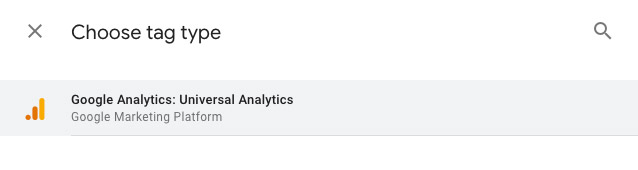
- Set up a new Google Analytics Settings Variable:
- Select New Variable… from the select dropdown
- In the Variable Configuration screen, enter your Google Analytics Tracking ID
- Name the variable ‘Google Analytics settings’
- Click Save
- Name the Tag 'Google Analytics - Page View'
- Submit the Workspace changes