

Use the below process to track website traffic to exhibitors / products / sessions / speakers within Google Tag Manager.
Enable History Variable
- On the Workspace Overview screen, select Variables
- Click Configure for the Built-In Variables
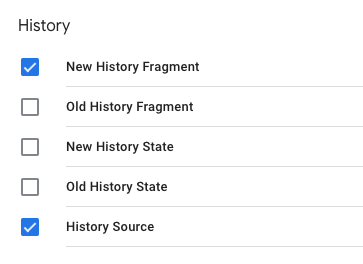
- Scroll to History and check
- New History Fragment
- History Source
- Close the window
Get Path with Fragment
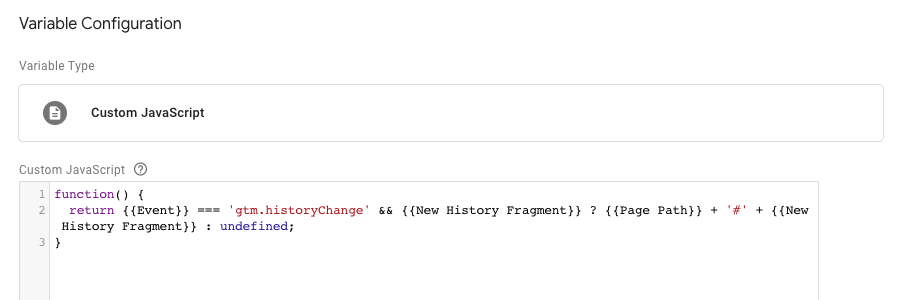
- On the same Variables screen
- Click New for the User-Defined Variables
- Name the variable
‘Path with Fragment’ - Choose Custom JavaScript as the variable type
- Copy and Paste the below code:
Click Savefunction() { return {{Event}} === 'gtm.historyChange' && {{New History Fragment}} ? {{Page Path}} + '#' + {{New History Fragment}} : undefined; }
Update the ‘Google Analytics settings’ Variable
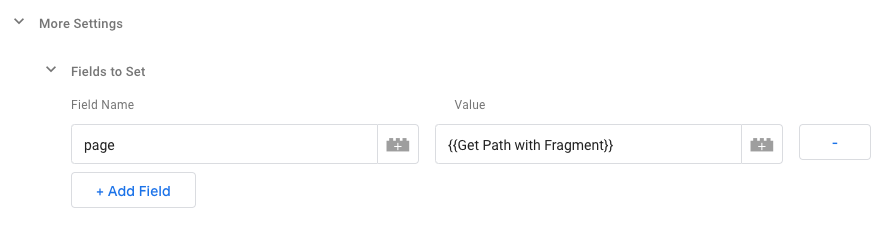
- On the same Variables screen
- Click on the
'Google Analytics settings'in User-Defined Variables - Click on More Settings and then Fields to Set
- Enter page for the Field Name
- Enter
{{Get Path with Fragment}}for the Value - Click Save
History Change Trigger
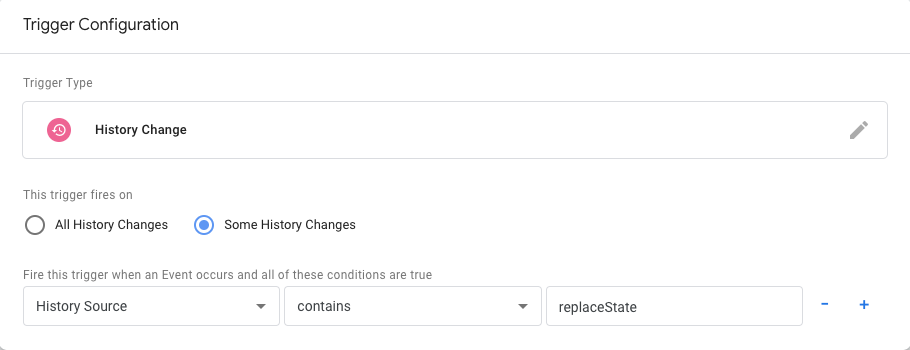
- Select Triggers
- Name the trigger
‘Event - History Fragment Change’ - Select Trigger Configuration
- Choose History Change
- Change the fire to
Some History Changesand configure toHistory contains replaceState - Click Save
Link the Triggers to the Tag
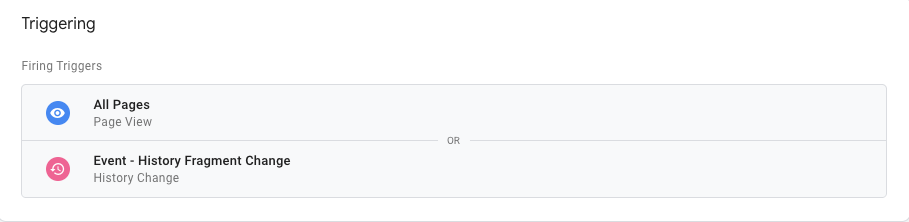
- Select Tags
- Open the
‘Google Analytics - Page View’tag - Add the
‘Event - History Fragment Change’to Triggering - Click Save