
Affiliate links are used on our registration platform to track and attribute marketing activity across different partners, channels, and campaigns. Each link contains a unique identifier that helps us understand where registrations are coming from and how promotional efforts are performing.
This guide explains how affiliate links work within LiveControl, how to create and use them correctly, and how the data can be used to measure engagement and conversion. Used properly, affiliate links provide clear, reliable insight into what’s driving registrations and where to focus your marketing efforts.
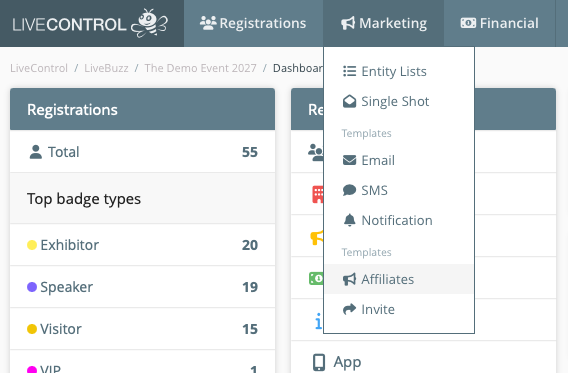
Click on Marketing from the top menu, then click on Affiliates:
You will then see a full list of Affiliates that already exist on this campaign.
It may be worth checking this list to see if an affiliate already exists that you can use. You can quickly search through the list using the keyword search at the top of the listing.
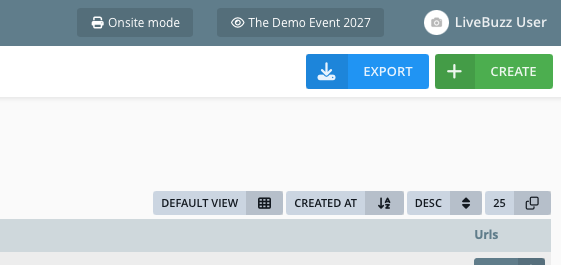
To continue to create a new affiliate, click on Create in the top right hand corner.
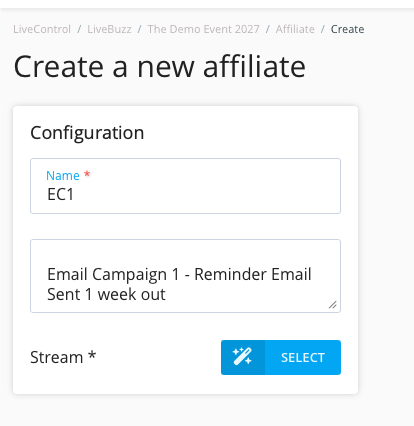
Give your new affiliate a name in the configuration. Remember that anything used in the name field will be visible in the URL.
Additional information can be entered in to the description field.
Affiliate Streams
Each Affiliate will need a Stream. In LiveControl, this simply means the registration page the affiliate link points to.
If you only have one registration page (excluding the Exhibitor Hub) this will normally be called ‘Visitor’ but you may have dedicated forms for Press or Students etc which can be selected.
Click on the blue Select button to choose your stream. Then click Select next to your chosen stream.
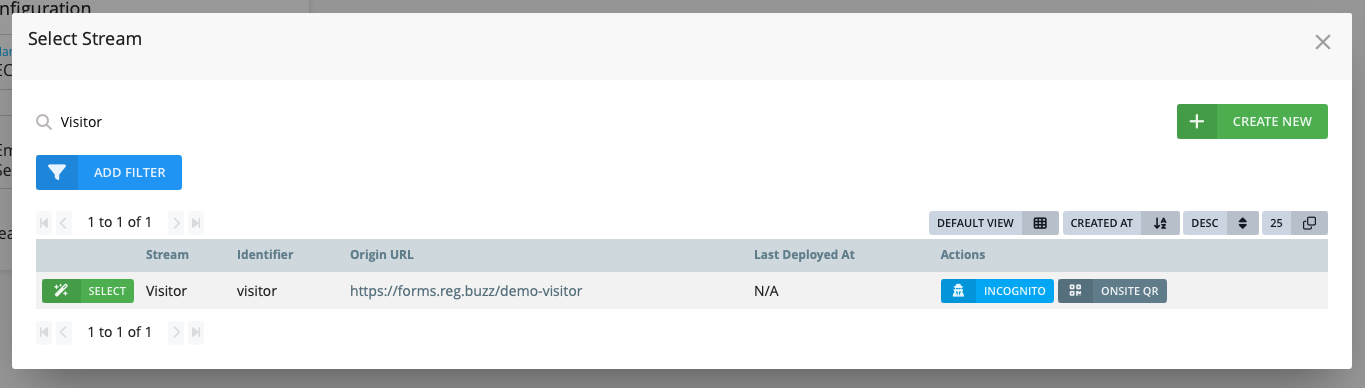
Once you have completed these three elements (Note: description is optional and can be left empty) click Save Affiliate in the top right hand corner.
You should now see your new affiliate in the listing along with a button on the right hand side for URLs:
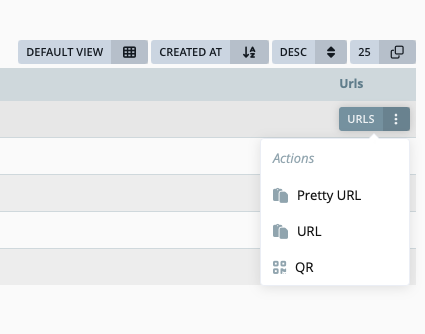
Affiliate Options
For each of your affiliates, there will be three options, clicking on each of them will give you the link or QR code.
Pretty URL
The Pretty URL is the link to use in most cases. It will contain your usual registration link, with the name of your affiliate after a forward slash.
From our example earlier:
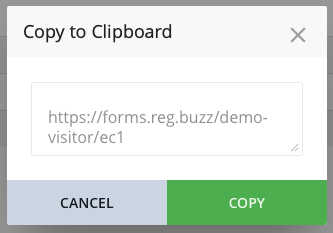
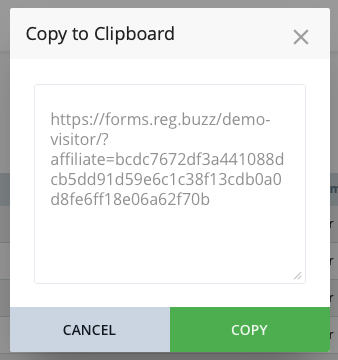
URL
This URL is much longer, and allows extra information to be passed to the registration form as well as the affiliate. Internally we will often use this for prepopulated links and one clicks. For more information on these please contact your registration manager at LiveBuzz.
QR
The QR code can be used to help bridge the gap between printed media and the digital world. You can used this code with magazine adverts, brochures etc.