

The Articles Manager is your central hub for managing all the articles on your website. From here, you can create, edit, organise, and delete content efficiently.
Accessing the Articles Manager
To access the Articles Manager:
- Login to the admin dasboard.
- Navigate to
Content > Articlesin the side panel. - You'll see a list of all existing articles, sorted by default in reverse chronological order (most recent first).
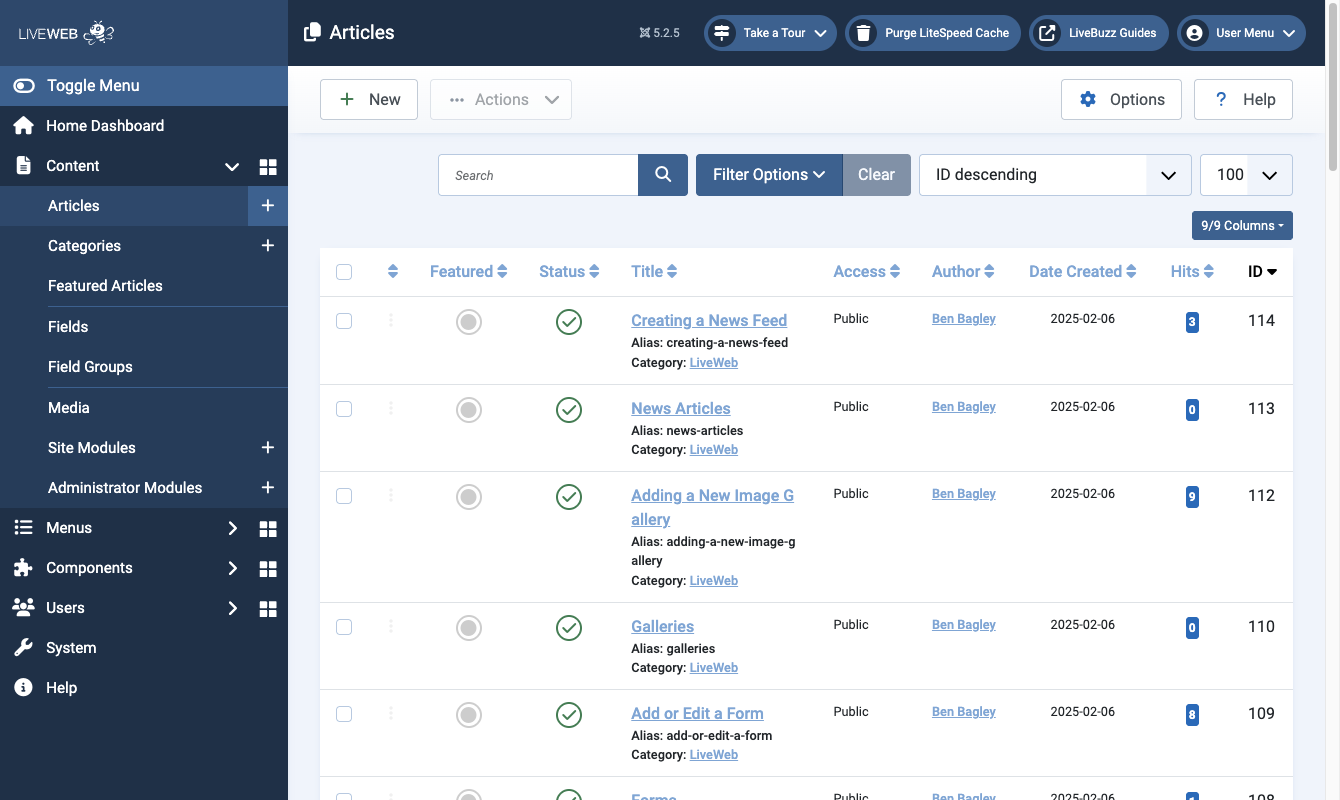 Article manager is located via content > articles
Key features of the Articles Manager
The Articles Manager interface provides several tools to help you manager your content:
- Search and Filter:
- Use the search bar to quickly find articles by title or keywords.
- Apply filters (e.g. category, status, author) using the dropdowns to refine the list.
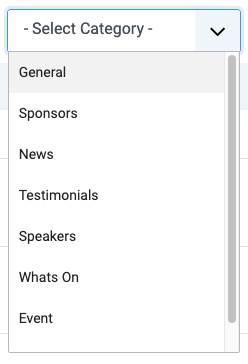
- Columns Overview:
- Featured: Star / unstar an item to set it as a featured article. Useful for featured sponsors etc.
- Status: Shows whether the article is published (green check), unpublished (grey cross), or archived.
- Title: Displays the article name. Click to open editor.
- Author: Lists the creator or editor of the article.
- Date Created: Lists the creation date of the article.
Articles Locking
- When an article or content block is being edited, it is automatically locked to prevent multiple people from making changes at the same time.
- Please ensure you either click Save & Close after making changes, or Close if you've just viewed the content, rather than clicking back in the browser or closing the window etc. This will ensure you check-out correctly.
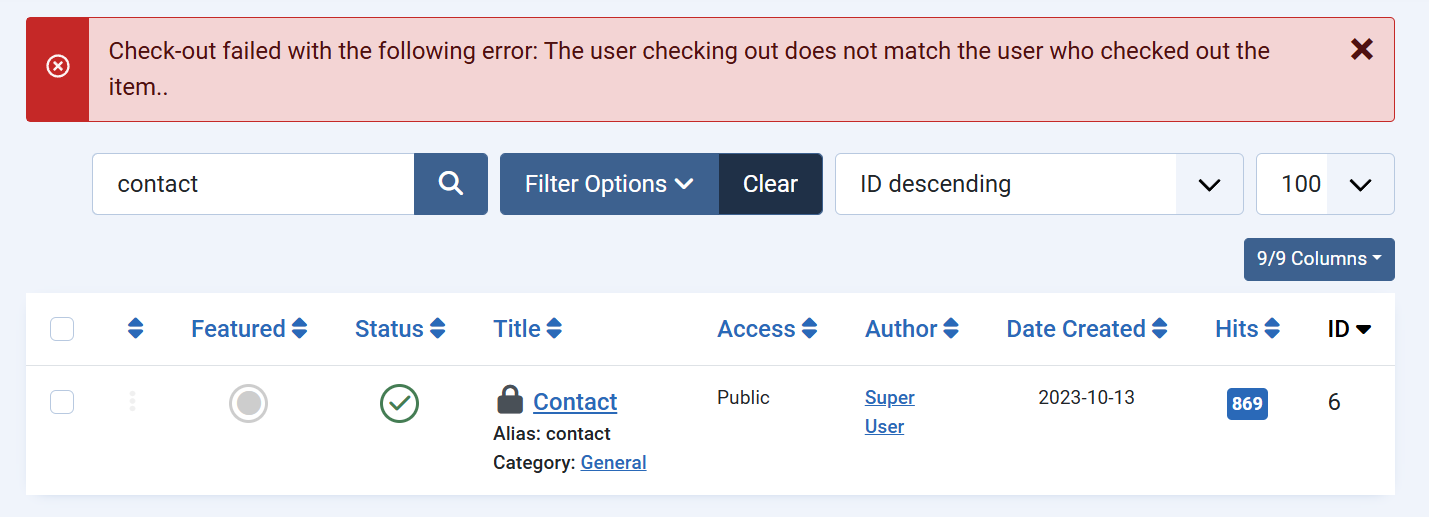
You may notice:
- You may notice: The content can’t be edited, and a message saying it’s locked.
- What to do: Wait until the other person finishes editing. If no one else is editing it, click the padlock icon to unlock.

Important
Only unlock content when you’re sure no one else is working on it, to avoid losing changes.