

Editing an article in LiveWeb allows you to update content, fix errors, and enhance pages with new information. Follow these steps to edit an existing article.
Access the Article Manager
- Log in to your LiveWeb admin panel. (See How to Log In)
- In the main menu, go to
Content > Articles. - Use the search bar or filters to find the article you want to edit.
- Click on the article title to open the editor.
Adjust Article Settings
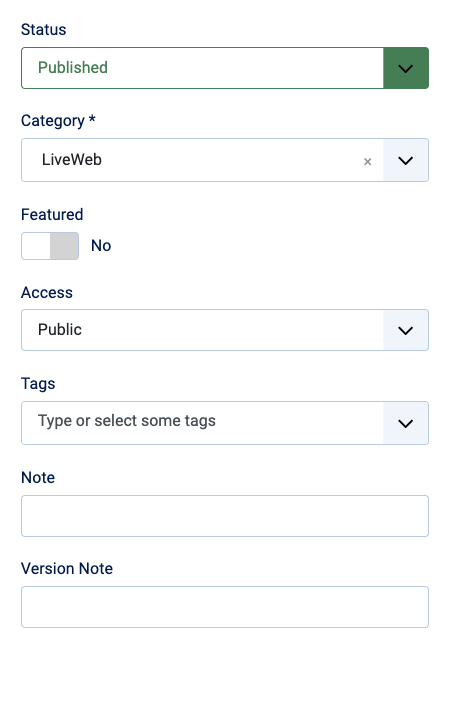 The article sidebar is located to the right of the article screen
Once the article is open on the right sidebar, you can update:
- Status: Set the article to Published, Unpublished, or Archived.
- Category: Move the article to a different category.
- Featured: Mark the article as Featured.
- Access: Choose who can view the article (Public, Registered Users, etc.).
Save Your Changes

After making edits, choose one of the following options:
- Save: Keeps the article open for further editing.
- Save & New: Saves the article and opens a blank editor for a new one.
- Save to Menu: Saves the artcle to a menu, taking you to the menu screen.
- Save as Copy: Duplicates the article and saves it as a copy.
Remember to save the article before leaving to avoid losing changes.
Close the Article
Once you have finished editing the article, close the article using the 'Close' button. This ensures that the article is free for others to edit.
Closing an article also discards any changes that have not been saved. Remember to save the article first.
Preview the Updated Article

You can article changes after saving by clicking the 'Preview' button. This will display the website in a new window without leaving the article screen.
Content Version History

The system automatically saves a version each time content is updated, allowing you to access previous versions if needed.
You can recover content changed or deleted by mistake. Only the latest 10 versions are stored.
Compare & Restore Versions
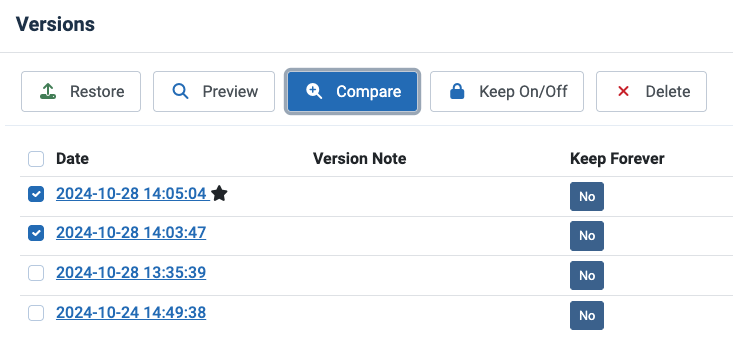
You can view changes between versions, identify added or removed text, and restore an earlier version if needed.