

Meta descriptions and Keywords help search engines understand what your page is about and influence how it appears in search results. Adding them to your articles improves search engine visibility and gives visitors a clear preview of your content, encouraging click throughs. Below is a guide on how to access your article metadata and add your meta description and keywords.
Access the Article Manager
- In the main menu, go to
Content > Articles. - Use the search bar or filters to find the article you want to edit.
- Click on the article title to open the editor.
Access Article Metadata
Once inside the article editor, to access the article metadata you must:
- Click on the 'publishing' tab option
- The metadata inputs are located on the right hand side of the publishing tab

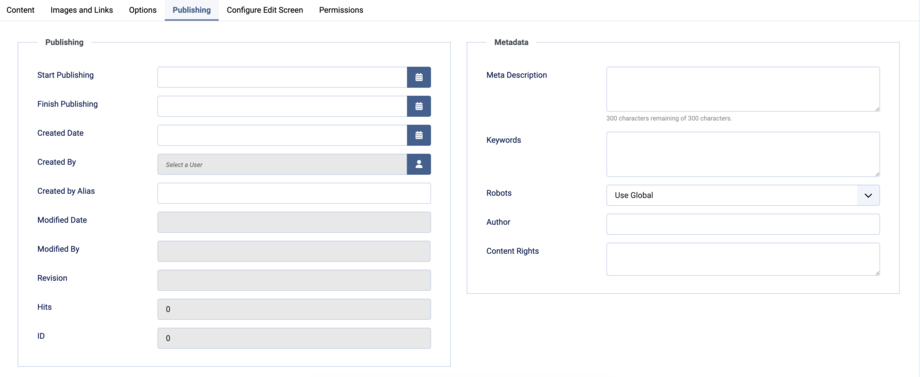
Add Meta Description

The meta description provides a short preview of what the page is about and appears in search engine results and social shares. Below are a few practical guides for your meta descriptions:
- Include the main topic or keyword naturally
- Keep it to a maximum of 300 characters but ideally between 120 and 160 characters as not to fall out of the window of Google displays in search results.
- Every article should have a unique meta description. Duplicates weaken SEO across the site
- Summarise the page in plain language
Adding SEO Keywords

These are a list of keywords that describe the main topics of your article. Below is a guide on how to structure these:
- Use 3 to 5 relevant terms seprated by commas
- Focus on terms people would search for
- Avoid keyword stuffing
Save Your Changes

After making edits, choose one of the following options:
- Save: Keeps the article open for further editing.
- Save & New: Saves the article and opens a blank editor for a new one.
- Save to Menu: Saves the artcle to a menu, taking you to the menu screen.
- Save as Copy: Duplicates the article and saves it as a copy.
Remember to save the article before leaving to avoid losing changes.