

Modules allow you to display additional content and features in different areas of your LiveWeb site, such as sidebars, footers, banners, or custom positions. This guide will walk you through creating a new module from scratch.
Access the Modules Manager
- Log in to your LiveWeb admin panel.
- Navigation to
Content > Modulesfrom the side menu. - Click the New button in the top-left corner to begin creating a module.
Choose a Module Type
You'll be presented with a list of module types to choose from.
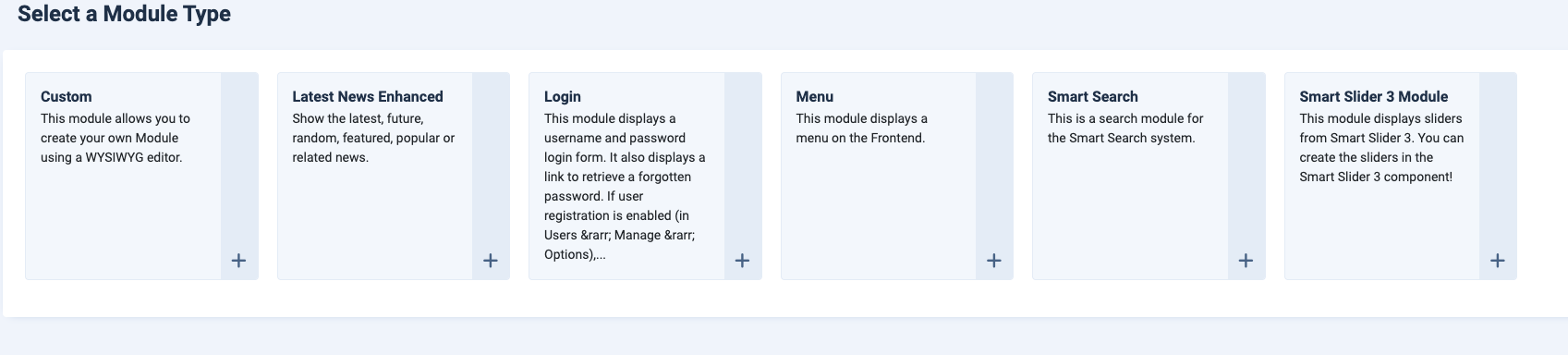 Creating a new module options
Common options include:
- Custom – Add your own HTML, text, and images.
- Latest News Enhanced - Display latest news, podcast episodes, blogs and more in a module.
- Login - Display a login screen.
- Menu – Display an existing menu in a different part of the site.
- Smart Search - Setup a search bar for site wide searching.
- Smart Slider 3 – Insert a pre-built slider.
Alternate Method: Copying an Existing Module
Alternatively modules can be created by copying an existing module to save time and retain pre-set settings. This is useful when creating a Latest News module, or a Custom module where similar layout settings are required.
To copy an existing module:
- Navigate to the Modules manager screen by going to
Content > Site Modules - Select the module to be copied by clicking the checkmark to the left of the module title.
- Select the Actions dropdown at the top of the list.
- From the dropdown, select Duplicate.
- The module will appear directly beneath the copied module in the list.
- After renaming and editing the module, remember to set the module to 'Published'.