
Welcome to your LiveWeb site! This guide will walk you through the essential tasks to help you create and manage content, update your site, and navigate the admin dashboard with ease.
Logging In
To access your site’s admin panel, follow the steps in our How to Log In guide.
Understanding the Dashboard
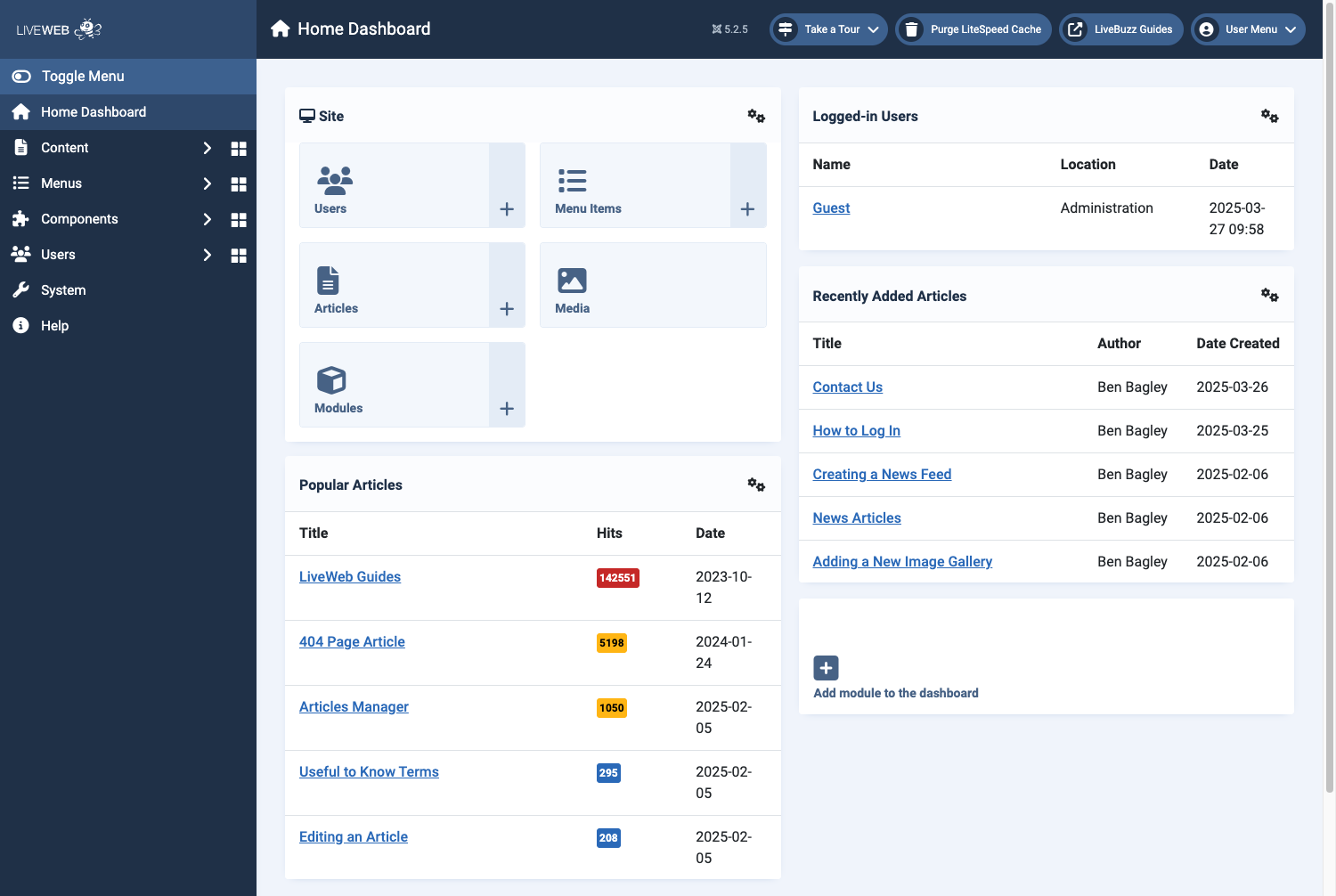 The LiveWeb dashboard allows you to quickly add items to your website and see stats at a glance
The Dashboard is your control center for managing your website. From here, you can:
-
Access the Article Manager, Module Manager, and Menu Manager.
-
View recent activity and updates.
-
Navigate using the top menu or quick-access icons.
Creating and Editing Articles
Articles form the main content of your website. To create a new article:
-
Go to
Content > Articles. - Click New
-
Enter a Title and add your content in the text editor.
-
Use the formatting tools to style your text, add images, or insert links.
-
Click Save & Close to publish or Save to keep editing.
To edit an existing article:
-
Navigate to
Content > Articles, find your article, and click on it to edit.
Adding Images and Media
Enhance your articles with images and media:
-
Click the Insert Image button above the text editor.

-
Upload an image from your computer or choose one from the media library.
-
Click Insert to add it to your article.
-
For Media, repeat the same process with the Insert Media button.

For best results, use optimised images to improve page loading speed. We also recommend embedding videos where possible from external services like YouTube and Vimeo.
Managing Modules
Modules allow you to display additional content, such as banners, sliders, and news feeds. To edit a module:
-
Go to
Content > Site Modules -
Click on the module you want to edit (e.g., "Latest News" or "Image Slider").
-
Update the content and settings as needed.
-
Click Save & Close.
Customising Menus and Navigation
To add a new menu item:
-
Go to
Menus > Main Menu(or the relevant menu). -
Click New.
-
Select Menu Item Type (e.g., Single Article).
-
Choose the article to link to.
-
Click Save & Close.
Publishing and Unpublishing Content
Control the visibility of your articles and modules:
-
Publish: Click the grey cross next to an article or module.

-
Unpublish: Click the green tick to hide it from the live website.
