
Understanding these key terms will help you navigate and manage your LiveWeb site more efficiently.
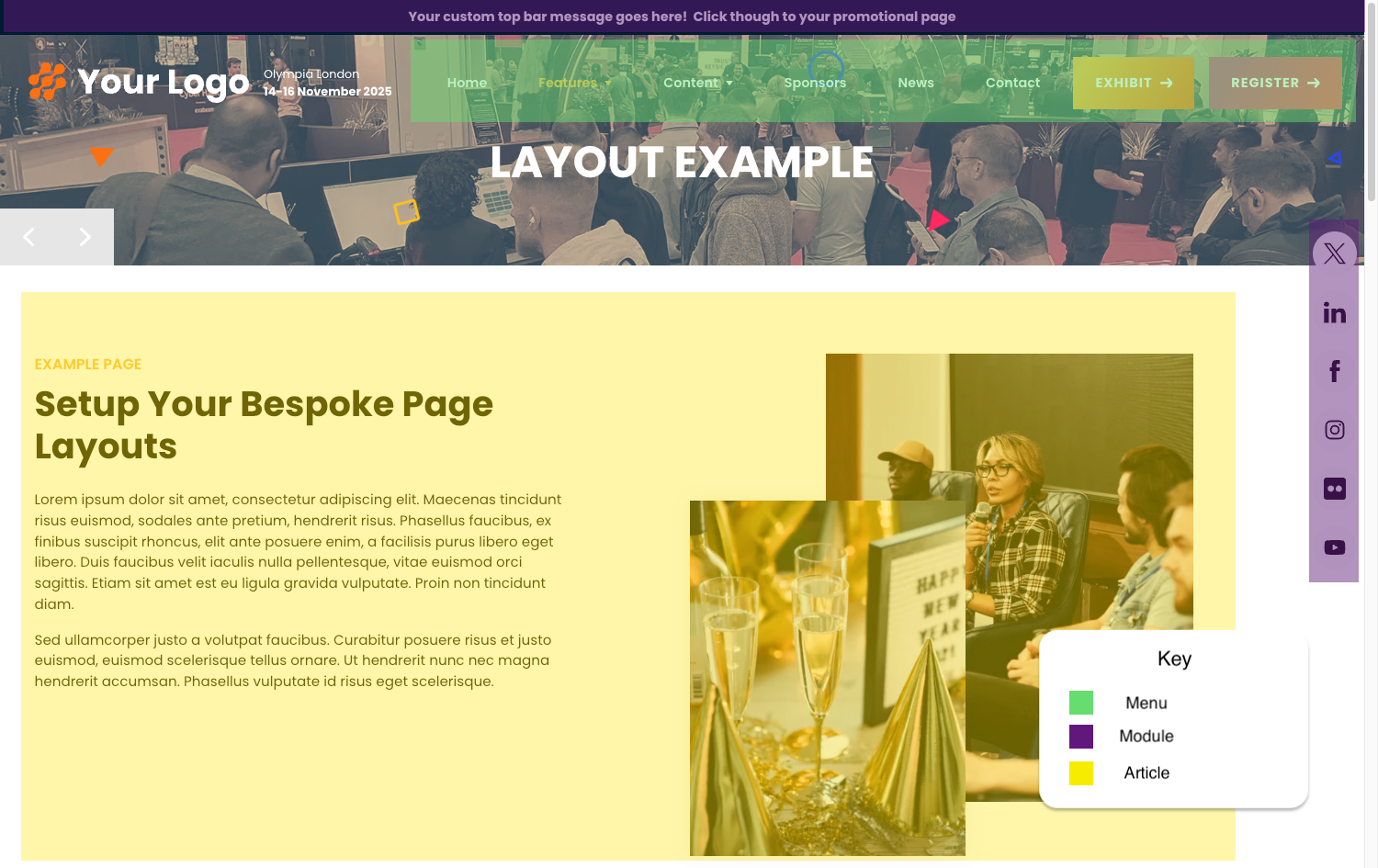 Menus, Modules and Articles make up the body of your LiveWeb site.
Menus
Menus control the navigation of your website, helping visitors find content easily. A menu consists of menu items, each linking to a different part of the site, such as an article or external URL.
- Menus are managed through the Menu Manager.
- A site may have multiple menus (e.g., Main Menu, Footer Menu, Sidebar Menu).
- Each menu item can have different access levels and display settings.
Modules
Modules are small content blocks or functional elements that can be placed around your website. They enhance your pages by displaying dynamic or additional content outside the main article area.
- Modules can be assigned to specific pages using the Module Manager.
- Common module types include image sliders, banners, news feeds, sponsors info, and social media icons.
- Modules are placed in predefined positions within your LiveWeb site template.
Articles
An article is a piece of content on your website, such as a blog post, news update, or static page. Articles make up the core of your website’s content and can include text, images, videos, and other media.
- Articles are managed through the Article Manager.
- Each article belongs to a category for better organization.
- Articles can be linked to from menus, displayed in modules, or featured on the homepage.
Alias
An alias is the text used in the page’s URL that creates a Search Engine Friendly URL (SEF) for menu items, articles, and categories.
- It’s usually lowercase with dashes instead of spaces.
- Example: “About Us” →
about-us - Makes links cleaner and easier to read.
- If you leave it blank, LiveWeb will create one automatically.
Browser Cache
Your browser saves (caches) copies of web pages, images and files to load them faster next time. This is helpful for speed, but sometimes it shows you an old version of the page.
- Learn how to do a hard refresh on different browsers here.
Hard refresh to see the updates.
Refresh Saved Content
After editing in the admin, changes may not appear straight away. Pressing the 'Refresh Saved Content' button ensures your updates become visible immediately.