

Modules are flexible content blocks used to display dynamic or additional information across your LiveWeb site — such as sliders, testimonials, banners, menus, and more. The Modules Manager gives you full control over where and how these modules appear.
Accessing the Modules Manager
To manage your modules:
- Log in to your LiveWeb admin panel.
- Go to
Content > Site Modulesfrom the side menu. - From here you will see a list of existing modules, including their titles, positions and published status.
Understanding the Modules List View
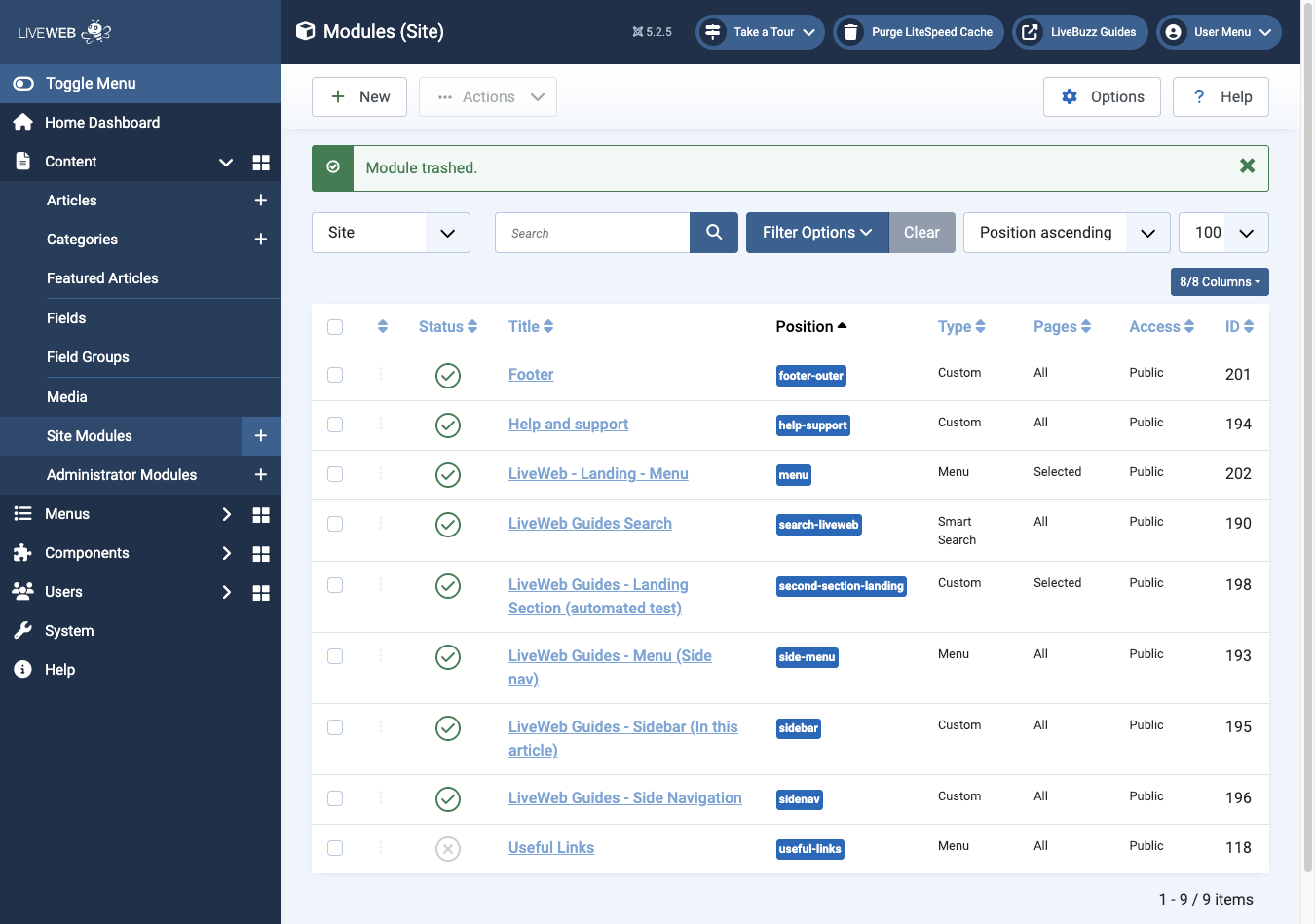 The module manager can be accessed via Content > Site Modules
The Modules Manager shows key details about each module:
- Status – Published (green tick), unpublished (grey cross), or trashed.
- Title – The name of the module (often not visible to visitors).
- Position – Where the module is placed on the site (based on the template layout).
- Type - The type of module, e.g. Custom, menu item.
- Pages – Indicates which pages where the module appears.
- Access - Visibility level (who can see the module).
- ID - The unique indentifier for the module.
Tip
You can filter by position, status, or search by module name to find specific items quickly.
Module Locking
- When a module or content block is being edited, it is automatically locked to prevent multiple people from making changes at the same time.
- Please ensure you either click Save & Close after making changes, or Close if you've just viewed the content, rather than clicking back in the browser or closing the window etc. This will ensure you check-out correctly.
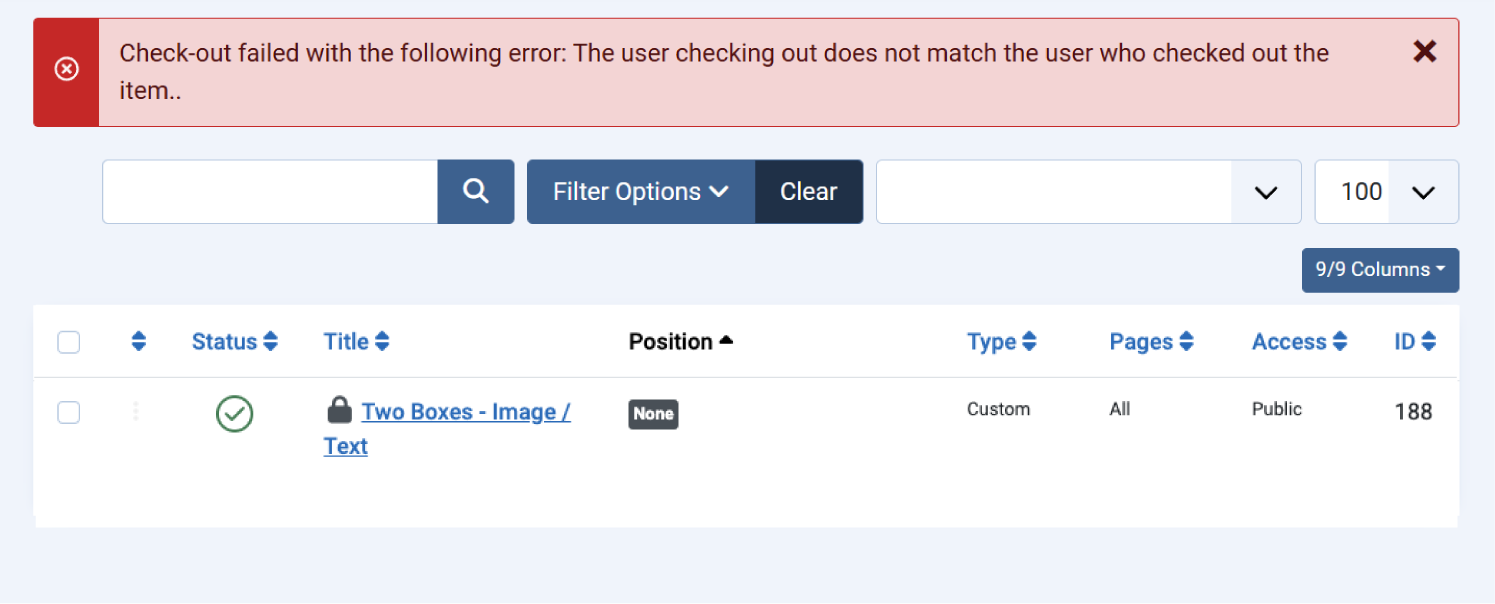
- You may notice: The content can’t be edited, and a message saying it’s locked
- What to do: Wait until the other person finishes editing. If no one else is editing it, click the lock icons to unlock.

Important
Unlocking should only be done when you’re sure no one else is working on the module, to avoid losing changes.